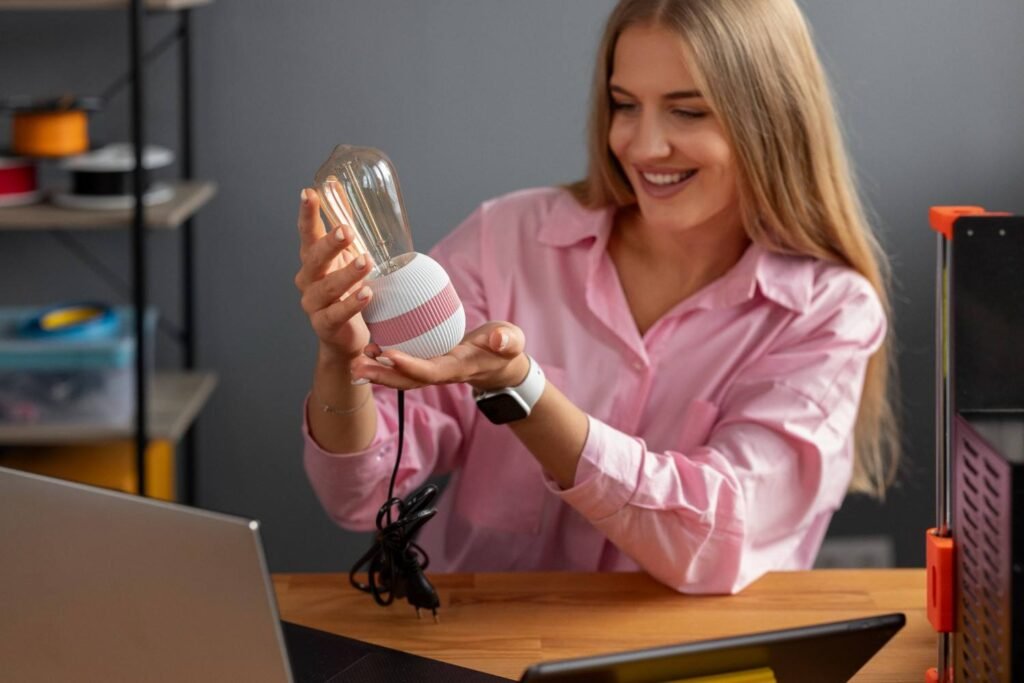
I never expected a small smart bulb to become one of the most frustrating parts of my smart home setup. Everything seemed fine until Alexa suddenly stopped controlling my lights and responded with the dreaded “device is not responding” message.
If you are dealing with a smart bulb not responding to Alexa, the problem is usually not the bulb itself. In most cases, the issue comes from a lost Wi-Fi connection, an outdated Alexa skill, incorrect device pairing, or a simple power interruption.
I have found that smart lighting problems are often easier to solve than they first appear. Instead of replacing your bulb or resetting everything immediately, it helps to follow a clear troubleshooting process that identifies where the connection is failing.
In this blog, I will walk you through the most effective ways to restore Alexa control, fix common smart home connection issues, and keep your lighting system working smoothly.
Why Is My Smart Bulb Not Responding to Alexa?
A smart bulb depends on several connections working together. The bulb needs constant power from the wall switch, a stable internet connection, communication with its manufacturer app, and a working connection with Alexa.
When any part of this system breaks, Alexa may show the light as offline or respond with messages like “Sorry, the device is not responding.”
The most common causes include:
A physical wall switch being turned off, weak Wi-Fi signals, router changes, expired Alexa skills, software updates, incorrect device pairing, or a failed connection between Alexa and the bulb manufacturer’s cloud service.
Before changing settings, I always start with the simplest checks because many smart lighting problems are caused by basic power interruptions.
Check Your Smart Bulb’s Power Supply First

Smart bulbs are different from traditional bulbs because they need continuous electricity to maintain their wireless connection. If someone turns off the wall switch, the bulb loses power, and Alexa cannot communicate with it.
Start by checking that the light switch connected to the bulb is turned on. If the switch is already on, power cycle the bulb by turning the switch off, waiting about 10 seconds, and turning it back on.
For screw-in bulbs, you can also carefully remove and reinstall the bulb to make sure it has a proper connection.
After restoring power, wait a minute and try Alexa again. Many temporary connection problems disappear after a simple power refresh.
Test the Smart Bulb in Its Manufacturer App
One of the fastest ways to identify the problem is testing the bulb through its original app.
Open the companion app for your smart bulb, such as:
- Philips Hue
- Smart Life
- Kasa
- Wyze
- Sengled
- Govee
Try turning the bulb on and off from the app.
If the bulb works in its own app but Alexa cannot control it, the bulb and Wi-Fi connection are probably fine. The issue is usually with the Alexa skill or account connection.
If the bulb does not work in the manufacturer app either, focus on fixing the bulb’s Wi-Fi connection before troubleshooting Alexa.
Amazon recommends checking whether third-party smart devices work through their manufacturer app because this helps determine whether the issue is with the device connection or Alexa integration.
Restart Alexa and Your Smart Home Devices
Temporary software glitches can prevent Alexa from communicating correctly with smart bulbs.
To restart your Echo device:
Unplug your Alexa speaker from the power outlet.
Wait about 30 seconds.
Plug it back in and allow it to reconnect.
You should also restart your router if multiple smart home devices are experiencing connection problems.
A router restart refreshes network communication and can resolve issues caused by temporary connectivity failures. Amazon recommends restarting Alexa devices and checking router connections when smart home devices stop responding.
Fix Wi-Fi Connection Problems With Your Smart Bulb

Many smart bulbs rely on a 2.4 GHz Wi-Fi network because it provides better range through walls compared with 5 GHz networks.
If you recently changed your router, Wi-Fi password, or network settings, your bulb may have lost its connection.
Check these common Wi-Fi issues:
Make sure your bulb is connected to the correct home network.
Confirm that your router is working properly.
Move the bulb closer to your router if the signal is weak.
Check whether your router combines 2.4 GHz and 5 GHz networks under one name.
Some routers use automatic band steering, which can sometimes cause compatibility issues with devices designed mainly for 2.4 GHz networks.
For smart home devices, Amazon recommends checking network compatibility and ensuring devices are connected correctly before reconnecting them to Alexa.
Reconnect Your Smart Bulb Skill in the Alexa App
If your bulb works normally in its own app but Alexa still cannot control it, refreshing the Alexa skill is often the solution.
Alexa connects with many smart lighting brands through skills. If that connection becomes outdated, Alexa may lose access to your bulb.
To reconnect the skill:
Open the Alexa app.
Tap More.
Select Skills & Games.
Open Your Skills.
Find your bulb manufacturer’s skill.
Disable the skill and enable it again.
Sign back into your smart bulb account if required.
Then ask Alexa to discover your devices.
Amazon recommends removing and adding skills again when a smart home device works through its manufacturer app but not through Alexa.
Remove and Rediscover Your Smart Bulb in Alexa
Sometimes Alexa saves an outdated device connection. Removing the bulb and adding it again creates a fresh connection.
Open the Alexa app and go to:
Devices → Lights → Select Your Bulb → Forget Device
After removing it:
Tap the “+” icon.
Select Add Device.
Run device discovery.
You can also say:
“Alexa, discover my devices.”
This step is especially useful after changing routers, resetting bulbs, or reinstalling smart home apps.
Update Your Alexa App and Smart Bulb Software

Outdated software can create compatibility problems between Alexa and smart lighting systems.
Check that you have the latest versions of:
- Alexa app
- Echo device software
- Smart bulb manufacturer app
- Bulb firmware
Keeping everything updated reduces connection errors and improves smart home reliability.
Reset Your Smart Bulb as the Final Solution
If your smart bulb still does not reconnect, a factory reset may be necessary.
The reset method depends on the brand, but many Wi-Fi bulbs use a power-cycle method. This often involves turning the bulb on and off several times until it flashes or enters pairing mode.
After resetting:
Reconnect the bulb using the manufacturer app.
Enable the Alexa skill again.
Discover the device in Alexa.
Always check your bulb’s manual before resetting because the exact process varies between brands.
How Can I Prevent Alexa Smart Bulb Problems in the Future?
After setting up smart lighting, prevention makes daily use much easier.
I recommend leaving smart bulbs connected to constant power and avoiding frequent use of the physical wall switch. Keep your router firmware updated, maintain a strong Wi-Fi signal, and avoid placing smart devices in areas with heavy wireless interference.
If you use multiple smart lights, give each bulb a simple name and organize them into Alexa groups. Clear names like “Kitchen Light” or “Bedroom Lamp” are easier for Alexa to recognize than complicated device names.
Frequently Asked Questions About Smart Bulb Not Responding to Alexa
1. Why is my smart bulb not responding to Alexa but works in the app?
If your bulb works in the manufacturer app but not Alexa, the problem is usually the Alexa skill connection. Disable and reconnect the skill, then rediscover the device.
2. Why does Alexa say my smart light is not responding?
Alexa may show this message because of Wi-Fi problems, lost skill connections, outdated software, or a temporary communication issue between Alexa and your smart bulb.
3. How do I reconnect my smart bulb to Alexa?
Reconnect your bulb by refreshing the manufacturer skill, removing the device from Alexa, and running device discovery again.
4. Can changing my Wi-Fi password affect Alexa smart bulbs?
Yes. Changing your router settings or Wi-Fi password can disconnect smart bulbs because they need updated network information to communicate.
Final Thoughts
When I troubleshoot a smart bulb not responding to Alexa, I always follow a simple order: check power, test the bulb app, restart devices, fix Wi-Fi issues, refresh Alexa skills, and reset only when necessary. Understanding how to stop smart bulbs from going offline starts with maintaining a stable network connection, using compatible devices, keeping firmware updated, and placing smart bulbs within reliable Wi-Fi range.
Most smart lighting failures are not caused by a broken bulb. They are usually small connection problems that can be fixed in minutes. With the right troubleshooting approach, you can restore Alexa voice control and continue enjoying a reliable smart home lighting experience.