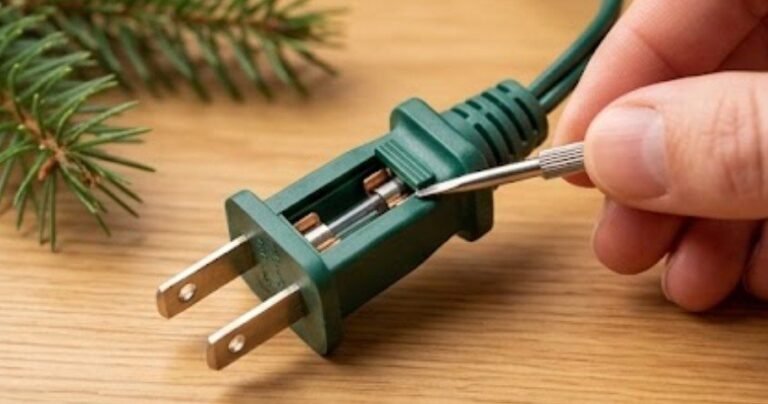
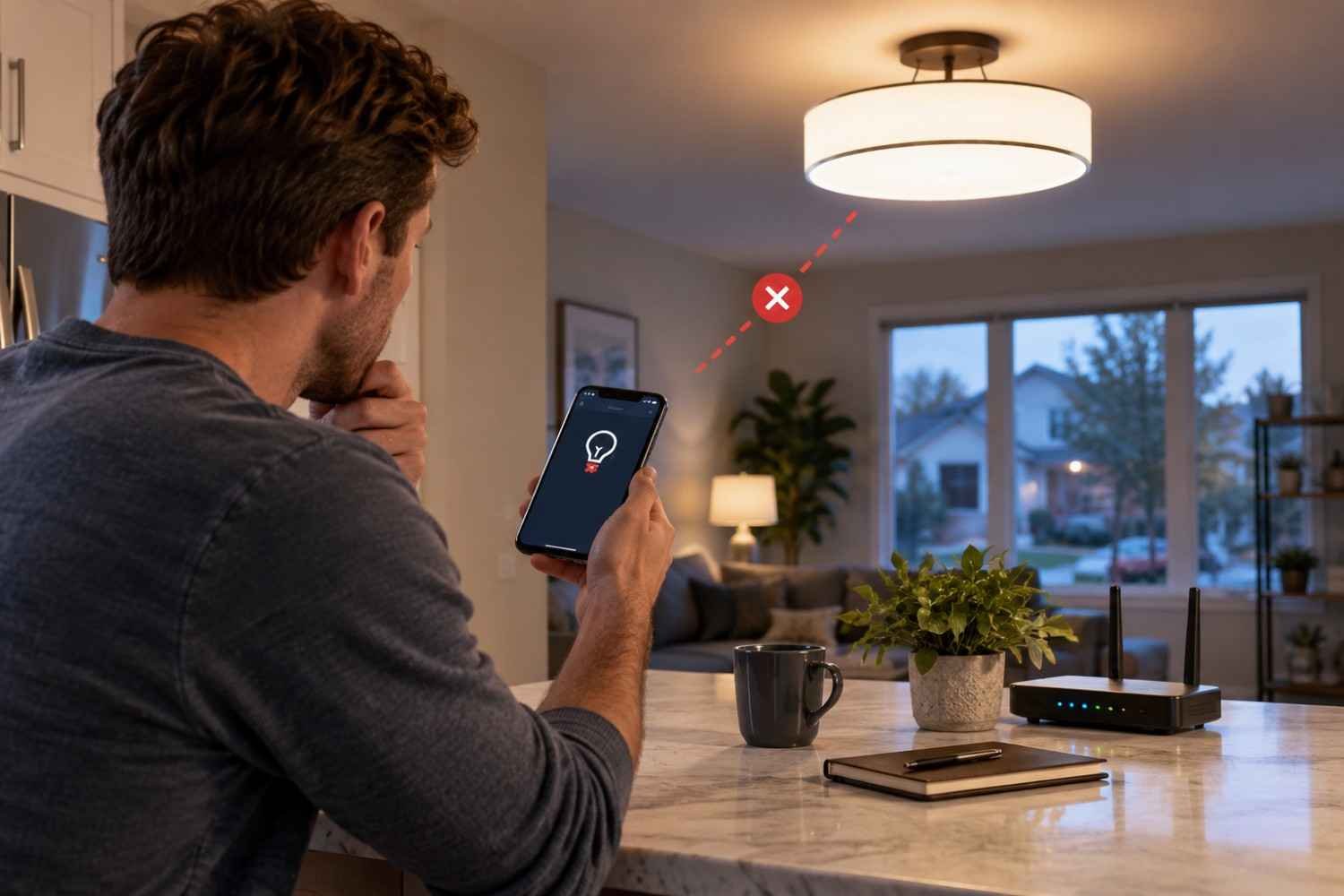
I noticed my smart lights were not always failing in the dramatic way I expected. Sometimes one would disappear from the app, while another stayed responsive. I found that frustrating because the light still worked perfectly from the wall switch. That was my first clue that a smart light can have two separate problems: getting electricity and staying connected to the network.
I started troubleshooting by resisting the urge to reset everything immediately. Instead, I checked whether the light had power, whether other devices had connection problems, and whether the bulb was designed for my Wi-Fi setup. That order made troubleshooting easier for anyone dealing with smart light disconnecting troubleshooting.
Start With the Power Before Blaming Wi-Fi
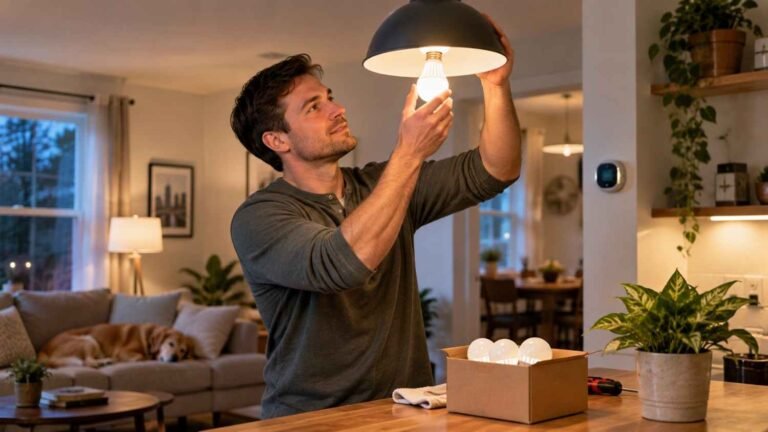
A smart bulb needs continuous electrical power to remain available for app or voice control. If the wall switch is turned off, the bulb is effectively disconnected, even if the Wi-Fi network is healthy.
Keep the switch on when the bulb is intended to stay smart. If the light randomly disappears while the switch remains on, notice whether other lights or appliances flicker at the same time. Repeated interruptions can point toward a loose connection, overloaded circuit, failing switch, or another electrical issue.
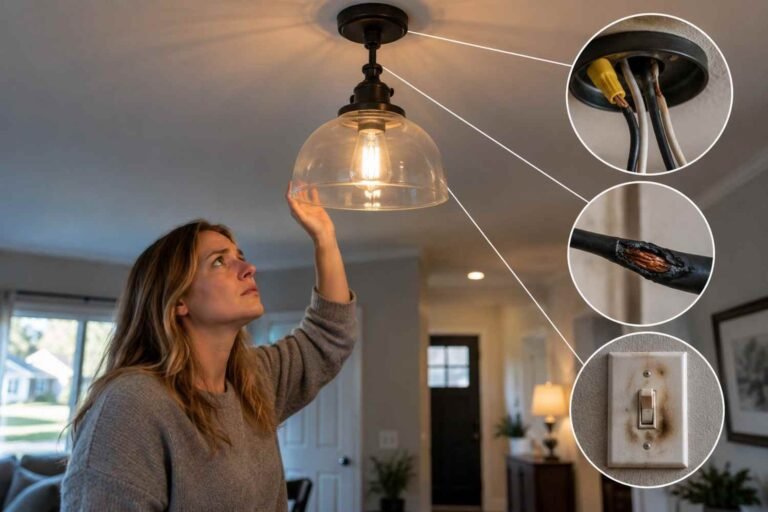
If you notice flickering, buzzing, heat, burning odors, tripped breakers, or other electrical symptoms, stop treating the problem as simple connectivity. A qualified electrician should investigate.
Check the Wi-Fi Setup
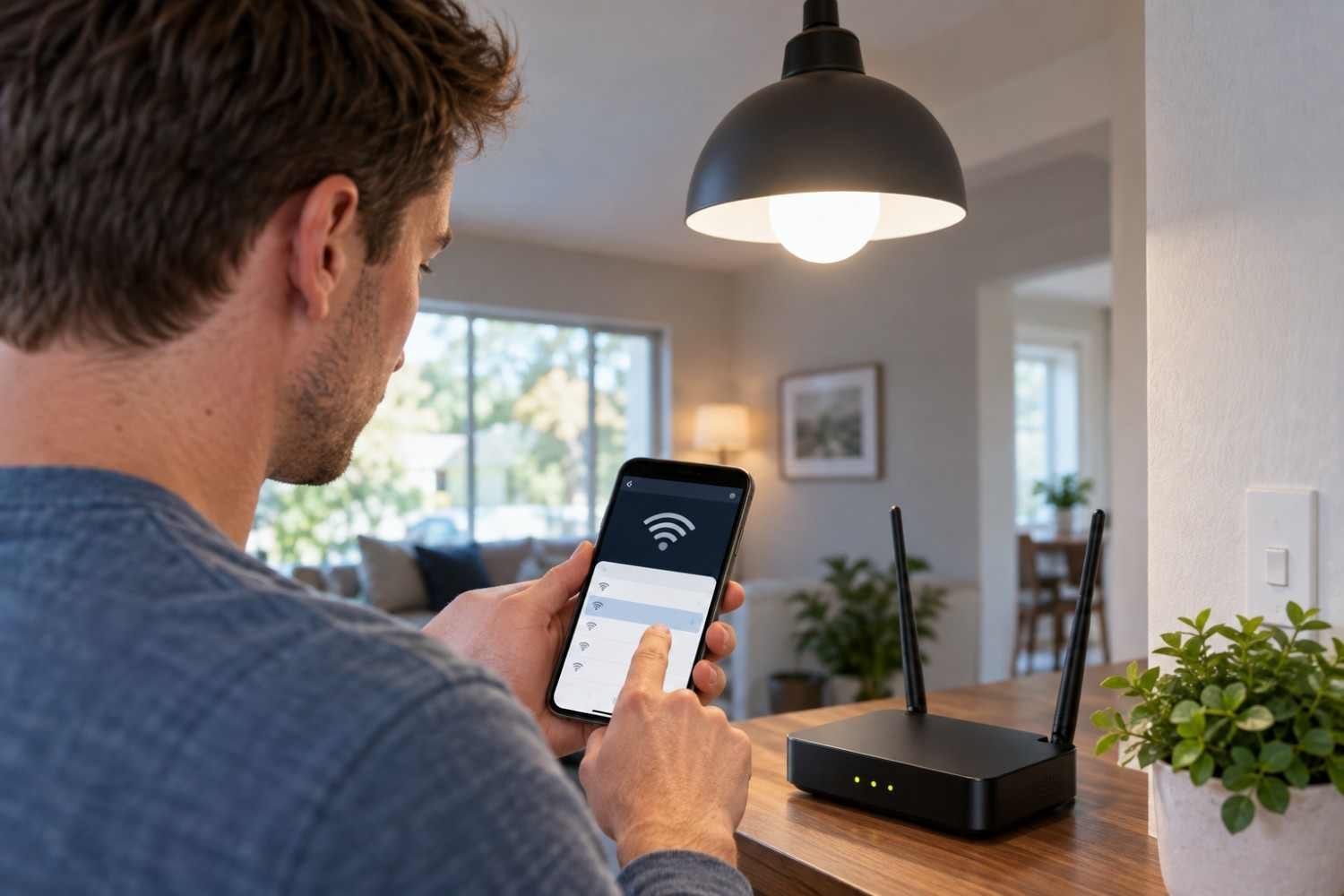
Many smart bulbs use 2.4 GHz Wi-Fi because it provides useful range and broad compatibility. Some models do not support 5 GHz. A router that combines both bands under one network name can sometimes make setup or reconnection more difficult, particularly with older devices.
Check the manufacturer’s specifications before changing router settings. If the bulb requires 2.4 GHz, connect it to the appropriate network during setup. A separate 2.4 GHz network can make troubleshooting easier.
Distance matters, too. A bulb in a garage, basement, exterior fixture, or room behind several walls may have a much weaker signal. Metal fixtures can further reduce reliability.
Mesh Wi-Fi deserves attention. Moving a bulb closer to a node may help, but roaming or band-steering behavior can still interfere. Check the router’s device list and signal information.
Look Beyond the Bulb
If only one smart light keeps going offline, the bulb, its location, or its network connection deserves attention. If every smart light drops together, the router, internet connection, hub, or smart-home platform becomes a stronger suspect.
Confirm that the router is online, the manufacturer’s app is working, and the light still appears in the device list. Check for firmware and app updates. A recent network-name or password change can leave configured lights unable to reconnect.
Security settings can matter with older smart devices. Some bulbs may not work properly with WPA3-only configurations, while others require a compatible mixed mode. Check the bulb’s documented requirements before changing security settings.
For hub-based lights, troubleshoot the bridge separately. Zigbee, Thread, and Matter devices do not all communicate like basic Wi-Fi bulbs, so changing router settings may not solve a hub-related problem.
Reset Only When It Makes Sense
Restarting the router and power-cycling the light can clear temporary problems. If that fails, removing the bulb from the app and pairing it again may help.
A factory reset removes stored configuration, so use the manufacturer’s procedure rather than guessing how many times to flip the switch.
Know When Wiring Enters the Picture
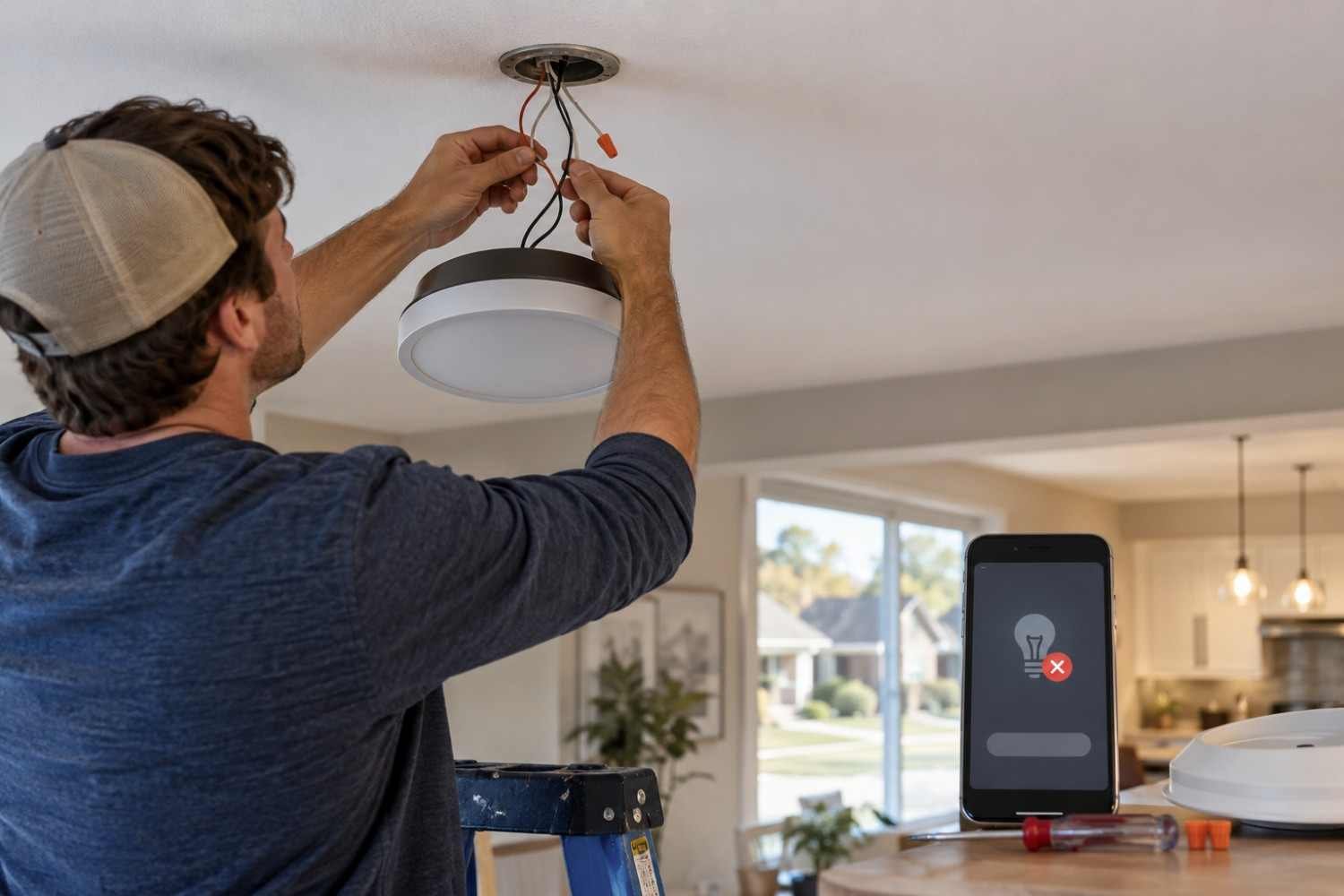
Smart-light problems can expose weaknesses that ordinary bulbs never made obvious. A conventional bulb may turn on when power returns, while a connected bulb also needs uninterrupted time to boot and communicate.
If the light loses power unexpectedly, examine the pattern before touching wiring. Does it happen when another appliance starts? Does the light flicker? Does the breaker trip? Does it affect several fixtures? Those details can separate networking from electrical problems.
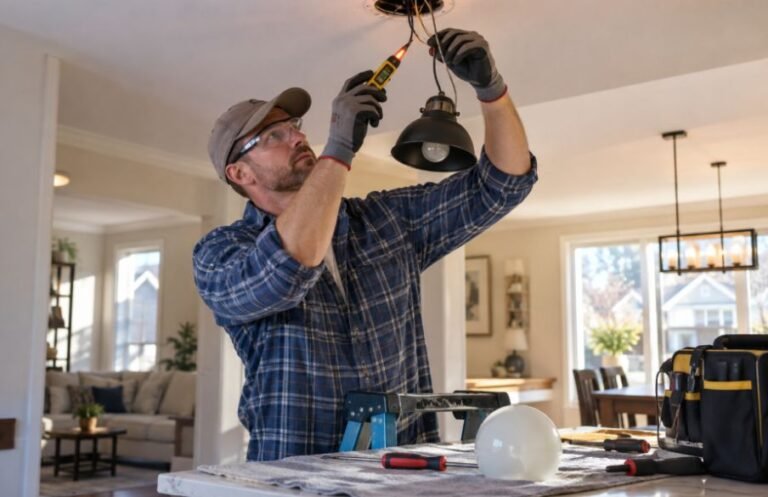
For broader electrical symptoms, a lighting circuit troubleshooting guide can help organize what to check and what information to give a professional. Do not open energized fixtures or handle wiring simply to make a smart bulb stay online. Turn off the appropriate breaker and verify the circuit is de-energized before electrical work, and use a qualified electrician when you are not certain about the installation.
A Practical Troubleshooting Order
Work from the simplest explanation toward the less obvious one:
- Confirm the wall switch and fixture have continuous power.
- Check whether the problem affects one light or multiple devices.
- Verify the bulb’s Wi-Fi requirements and signal strength.
- Check the router, app, firmware, and network credentials.
- Re-pair or factory-reset the bulb only after simpler checks fail.
This order reduces unnecessary resets and preserves clues about what caused the disconnect.
FAQs: Smart Light Disconnecting Troubleshooting: A Practical Homeowner’s Guide
1. Why does my smart light keep going offline?
Common causes include interrupted power, weak Wi-Fi, incompatible bands, router changes, interference, or outdated software. Start by confirming continuous power and checking the bulb’s network requirements.
2. Should a smart bulb stay on at the wall switch?
Yes. For normal smart operation, leave the switch on so the bulb continuously receives power. Use the app, voice assistant, or compatible smart control to operate it.
3. Can a mesh router cause smart lights to disconnect?
It can. Some bulbs have trouble with band steering or roaming behavior. Check the manufacturer’s requirements and consider a dedicated compatible network if the router allows it.
4. When should I reset a smart bulb?
Reset it after basic power, Wi-Fi, and app checks fail, particularly after changing routers or network credentials. Follow the exact reset procedure for the model.
Why Reliable Smart Lighting Starts With Good Diagnosis
The biggest lesson is that a disconnected smart light is not automatically a bad bulb. A few minutes of observation can reveal whether the real issue is power, wireless coverage, router behavior, software, or the smart-home ecosystem itself. That distinction saves time and prevents unnecessary resets and replacements. It also matters for safety because an electrical fault should never be disguised as a connectivity problem.
Once the cause is clear, the fix is usually much less mysterious. Good smart-light troubleshooting starts with the basics, follows the evidence, and leaves complicated fixes for when they are genuinely needed. If several fixtures show related symptoms, identifying common lighting wiring problems can help put those observations in context.