

A smart bulb that suddenly stops responding can turn a simple lighting upgrade into a frustrating experience. One moment, you are adjusting the brightness from your phone or asking Alexa to turn on the lights, and the next moment, your smart home app shows the device as unavailable.
I have found that these unexpected disconnects are usually not caused by a faulty bulb but by hidden issues with Wi-Fi signals, router settings, or power interruptions.
If you are searching for how to stop smart bulbs from going offline, the key is to look beyond the bulb itself and understand how your lighting system communicates with your home network. A stable connection depends on the right Wi-Fi frequency, consistent power, updated software, and proper smart home setup.
In this blog, I will walk through the most effective solutions I use to keep smart bulbs connected and prevent repeated offline problems.
Why Do Smart Bulbs Keep Going Offline?
A smart bulb is essentially a small wireless computer inside a light fixture. Unlike a traditional bulb, it needs constant communication with your router and smart home platform.
When a smart bulb disconnects, it means the device has lost communication with either your Wi-Fi network, the manufacturer’s cloud service, or your smart assistant.
The most common reasons include weak Wi-Fi coverage, router configuration issues, outdated firmware, mesh network problems, and power interruptions. Many Wi-Fi smart bulbs are designed to work on the 2.4 GHz band because it provides better range and wall penetration compared with 5 GHz networks.
However, modern routers often combine both bands under one network name, which can create connection problems for smart devices. Similar to how choosing the right LED technology matters for appearance, homeowners comparing options like a cob led strip without diffuser should also consider how design choices affect performance, visibility, and overall lighting quality.
Before replacing your bulbs, it is important to troubleshoot the network and power sources first. Checking connectivity, updating firmware, and improving signal strength can often restore reliable smart lighting performance without purchasing new equipment.
Keep Your Smart Bulbs Connected With a Reliable Power Supply
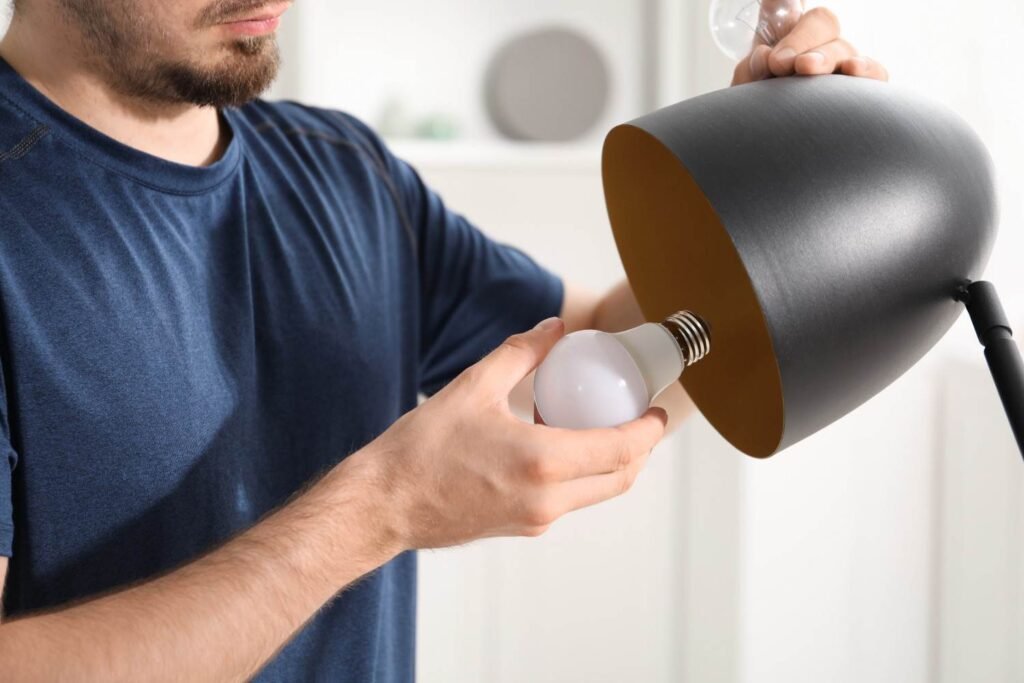
One of the simplest causes of smart bulb disconnections is also one of the easiest to overlook: the bulb is losing power.
Smart bulbs need continuous electricity to maintain their Wi-Fi connection. If someone turns off the wall switch, the bulb completely loses power and will appear offline in your app.
I recommend keeping the physical switch turned on and controlling the light through your app, voice assistant, or automation system instead.
For households where family members frequently turn switches off, installing a simple switch cover or toggle guard can prevent accidental power cuts. This small change can eliminate many unnecessary smart bulb connection issues.
You should also check whether the bulb is securely installed. A loose connection inside the socket can cause intermittent power loss, which may look like a Wi-Fi problem.
Connect Smart Bulbs to a Stable 2.4 GHz Wi-Fi Network
One of the biggest reasons homeowners experience smart bulb disconnecting problems is incorrect Wi-Fi configuration.
Many smart bulbs only support 2.4 GHz Wi-Fi. The problem is that many newer routers use features like Smart Connect or Band Steering, which automatically move devices between 2.4 GHz and 5 GHz networks. While this works well for phones and laptops, it can confuse some smart home devices.
To improve stability, separate your Wi-Fi bands in your router settings. Create separate network names, such as:
HomeNetwork_2.4G
HomeNetwork_5G
Then connect your smart bulbs only to the 2.4 GHz network.
If your router allows advanced settings, you can also improve reliability by selecting less crowded channels. The standard recommended 2.4 GHz channels are 1, 6, and 11 because they reduce overlap between wireless signals.
Setting the channel width to 20 MHz can also help older smart bulbs maintain a stronger connection.
Fix Smart Bulbs Disconnecting on Mesh Wi-Fi Systems
Mesh Wi-Fi systems are excellent for large American homes because they provide wider coverage. However, some smart bulbs struggle when mesh routers constantly move devices between different access points.
Features such as Fast Roaming, BSS Transition, and aggressive band steering may force stationary devices like smart bulbs to switch connections repeatedly.
If your bulbs keep going offline after installing a mesh system, check your router app settings and consider disabling advanced roaming features temporarily.
You can also test the bulb by placing it closer to the main router. If the connection becomes stable, weak signal strength or mesh handoff is likely the problem.
Reduce Wi-Fi Interference Around Your Smart Lights
Sometimes the issue is not your internet connection but the physical location of the bulb.
Metal fixtures, enclosed outdoor lights, and thick materials around the bulb can block wireless signals. A smart bulb inside a metal lampshade may receive a weaker signal than the same bulb installed in an open fixture.
I suggest testing the bulb in a different lamp or moving your router or mesh node closer. Even a small adjustment in placement can improve reliability.
Avoid placing your router near large metal objects, appliances, or electronics that create wireless interference.
Update Firmware and Reconnect Your Smart Home Apps
Software problems can also cause smart bulbs to appear offline.
Manufacturers regularly release firmware updates that improve compatibility, security, and connection stability. Open your bulb manufacturer’s app and check whether your devices have pending updates.
If the bulb works normally inside its own app but appears offline in Alexa, Google Home, or Apple Home, the issue is usually account synchronization.
Try removing and reconnecting the device integration. For Alexa users, refreshing the skill connection can help. Google Home users can unlink and relink the manufacturer account to force a new device sync.
Check Router Compatibility and Network Settings
If your smart bulb continues disconnecting, your router settings may need adjustment.
Some smart devices struggle with:
- WPA3-only security settings
- Guest network restrictions
- Client isolation
- Incorrect Wi-Fi passwords
- Outdated router firmware
After changing routers or upgrading internet equipment, always reconnect your bulbs properly. A new router often means your old Wi-Fi credentials and device settings no longer match.
Restarting your router, updating firmware, and reconnecting the bulb from scratch can often restore a stable connection.
How to Prevent Smart Bulbs From Going Offline Again
Once you fix the issue, prevention is the best approach.
I recommend keeping your router firmware updated, maintaining strong Wi-Fi coverage, avoiding unnecessary power interruptions, and choosing smart bulbs that are compatible with your existing smart home ecosystem.
For larger homes, a quality mesh system or dedicated IoT network can provide better reliability. Keeping your smart devices organized on a stable network will reduce future connection problems.
A dependable smart lighting setup depends on three things: consistent power, strong Wi-Fi, and updated software.
Frequently Asked Questions (FAQs)
1. Why do my smart bulbs keep disconnecting from Wi-Fi?
Smart bulbs usually disconnect because of weak signals, incorrect Wi-Fi settings, router compatibility issues, or power interruptions. Checking your 2.4 GHz connection is often the first step.
2. How can I stop smart bulbs from going offline?
The best way to stop smart bulbs from going offline is to keep them powered, connect them to a stable 2.4 GHz network, update firmware, and avoid Wi-Fi interference.
3. Why is my smart bulb offline in Alexa but working in the app?
If the bulb works in its manufacturer app but appears offline in Alexa, the problem is usually account syncing. Reconnecting the smart home skill often fixes the issue.
4. Do smart bulbs need 2.4 GHz Wi-Fi?
Many smart bulbs require 2.4 GHz Wi-Fi because it offers better range and compatibility. Always check the manufacturer’s specifications before setup.
Final Thoughts
After dealing with smart lighting problems myself, I learned that most offline errors are caused by simple setup issues rather than defective bulbs. A stable Wi-Fi network, reliable power source, and correct router settings can make a huge difference.
If you are trying to figure out how to stop smart bulbs from going offline, start with the basics: keep the switch on, optimize your 2.4 GHz connection, reduce interference, and keep your software updated.
Once your smart lighting system has a strong foundation, you can enjoy the convenience of connected lights without constantly troubleshooting connection drops.





One thought on “How to Stop Smart Bulbs From Going Offline: Complete Fix Guide”